Cyber Security Basics
MFA Isn’t Just a Code on Your Phone. Here’s the Full Picture.
September 2026 · Technicalities
The short version
Multi-factor authentication blocks the vast majority of account attacks, but the term covers a lot of ground. SSO, SAML, trusted devices, and Windows Hello all solve a different part of the same problem: proving it’s really you, without making everyone’s day harder. Here’s how the pieces fit together.
99.9%
of automated sign-in attacks are stopped just by having MFA turned on
14%
of users are on phishing-resistant MFA. Most are still using the weaker, easier-to-trick kind
45-pt gap
between the highest MFA adoption by industry (tech, at 87%) and the lowest (transport and warehousing, at 42%)
Not All MFA Is Created Equal
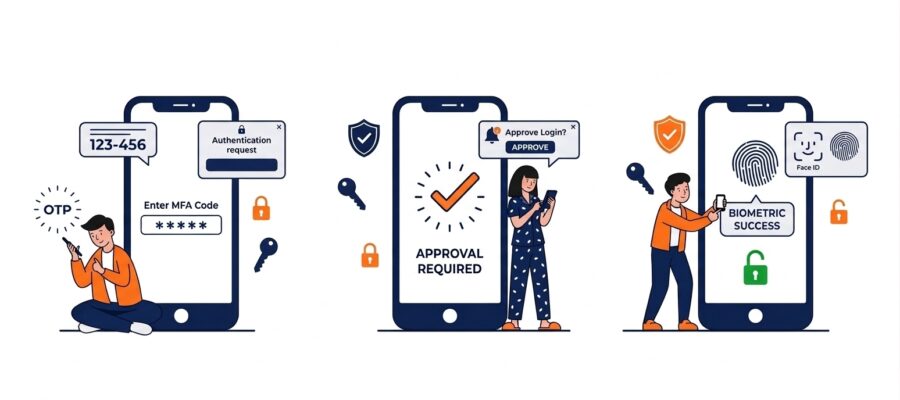
MFA just means proving who you are with more than a password. But that second factor can be strong or weak. Text message codes and email codes are both firmly on the outer these days. They’re the most familiar forms of MFA, and better than nothing. But they’re also the easiest for an attacker to intercept or redirect, or to simply trick someone into reading out over the phone. A text can be hijacked with a SIM swap. An email code is only as safe as the inbox it lands in, which is often the very account under attack.
App-based codes and push notifications are a step up. The strongest option is often called “phishing-resistant” MFA. It ties the login to your specific physical device or a hardware key. There’s nothing for an attacker to trick you into typing or approving, because the code never travels anywhere on its own.
There’s also a newer trick worth knowing about, called MFA fatigue or push-bombing. Instead of trying to steal a code, an attacker who already has your password just sends approval requests to your phone over and over. The hope is that you’ll tap “Approve” out of frustration or habit.
It’s not a theoretical risk. Uber was breached this way in 2022. An attacker bought a contractor’s stolen password, then flooded their phone with dozens of MFA prompts in half an hour. He followed up with a message pretending to be IT support, asking them to approve one request to “fix” the problem. The contractor did, and the attacker walked straight into Uber’s internal systems, including its Slack, code repositories, and admin tools. Most businesses now defend against this with number matching, which asks you to type a number shown on your screen into the app. It turns an easy, reflexive tap into a deliberate check.
Already happening, not just advice
This isn’t just best-practice talk. Microsoft is actively retiring SMS and voice codes in Microsoft 365 (Entra ID). Since 1 September 2026, passkeys have been the default for anyone newly setting up MFA. From 1 February 2027, Microsoft-provided SMS and voice codes stop working for sign-in altogether, with no opt-out. If your business still leans on text message codes, the deadline to move off them is already on the calendar.
What’s a Passkey, Actually?
A passkey isn’t a second factor bolted onto a password. It’s designed to replace the password entirely. When you set one up, your device creates a matching pair of digital keys. One stays locked inside your device and never leaves it. The other is given to the website or app you’re signing into.
To log in, your device simply proves it holds the private key, usually with your fingerprint, face, or PIN. That’s it. There’s no password to steal and no code to phish, because the actual secret never exists anywhere it could be intercepted. This is the technology behind Microsoft’s shift away from SMS and voice codes. It’s also what’s behind the “Sign in with Face ID” or “Sign in with Windows Hello” prompts you may already be seeing on more websites.
Windows Hello: Passkeys, Already Built Into Your Laptop
Windows Hello is the fingerprint, face recognition, or PIN login built into most modern Windows devices. It’s one of the most common ways businesses will actually use passkeys day to day. Because the check happens locally on the device itself, it counts as strong, phishing-resistant MFA. Nothing gets sent anywhere for an attacker to intercept, and there’s no code to read out over the phone to a scammer. If your business laptops support it, it’s usually one of the easiest wins available: more secure than a password alone, and genuinely faster to use.
Trusted Devices: Convenience With a Catch
Most MFA systems let you mark a device as “trusted” so you’re not asked to verify every single time you log in from your own laptop. It’s a reasonable trade-off. Repeated MFA prompts train people to approve things without thinking, which is exactly what push-bombing relies on.
The catch is that a trusted device is only as safe as the device itself. If a laptop is lost, stolen, or still logged in after someone leaves the business, that trust needs to be revoked straight away. It’s worth checking periodically that the list of trusted devices on your business accounts is one you actually recognise.
SSO (Single Sign-On)
Log in once, and get access to every connected business app from there, without re-entering a password each time. Most businesses on Microsoft 365 already have this available through Microsoft Entra ID.
SAML
The technical language that makes SSO possible. It lets your identity provider tell another app “yes, this is a verified employee,” without that app ever seeing a password. You’ll rarely configure it directly, but you’ll see the term when a vendor asks if you support SSO.
Why SSO Is Worth Setting Up Properly
Beyond convenience, SSO gives you one place to switch access on or off. When someone joins the business, one account gets them into everything they need. When someone leaves, disabling that one account locks every connected app at once. Nobody has to remember every separate login the person had. It also means MFA only needs to be enforced in one place to protect everything behind it, rather than being configured app by app.
Conditional Access: Making MFA Context-Aware
This is the feature that ties everything above together, and most businesses already have access to it without buying anything extra. Conditional Access, part of Microsoft Entra ID, looks at the circumstances of a sign-in: the device, the location, whether it looks risky. Then it decides what to do about it. A staff member signing in from their usual laptop in the office gets waved through smoothly. The same login attempt from an unrecognised device overseas can be blocked, or forced through extra verification, automatically.
Microsoft 365 Business Premium includes Conditional Access, so this isn’t an enterprise-only feature. The policies most small businesses set up first are straightforward: require MFA for everyone, block older “legacy” sign-in methods that skip MFA entirely, and flag or block logins from countries the business has no reason to operate in. None of it needs to be configured perfectly on day one. It’s worth rolling out gradually, with a way to regain access if a policy is set too strictly. Even the basic rules close off a lot of the easy paths in.
Where to start
- Turn on MFA everywhere it’s offered, starting with email, banking, and any system holding customer data.
- Prefer an authenticator app, passkey, or Windows Hello over SMS or email codes. Both are being phased out, not just discouraged.
- Turn on number matching if your MFA provider supports it, to blunt push-bombing attempts.
- Review trusted devices periodically, and revoke access the moment a device is lost or an employee leaves.
- Ask about SSO through Microsoft 365 for any business app you’re rolling out, so access stays centrally managed.
- Turn on basic Conditional Access rules if you’re on Business Premium, starting with blocking legacy sign-in methods and flagging logins from unexpected countries.
None of these pieces need to be adopted all at once. Turning on MFA properly is the single biggest step. Everything else here, passkeys, Windows Hello, trusted devices, SSO, and Conditional Access, is about making that protection easier to live with day to day, rather than something people quietly try to work around.
Not sure how well MFA is set up across your business?
Technicalities can review what’s in place today and help you roll out stronger, easier-to-use protection across your whole team.
Get in Touch